Roundcube§
To run the Roundcube webmail platform using Unit:
Install Unit with a PHP language module.
Install and configure Roundcube’s prerequisites.
Install Roundcube’s core files. Here, we install it at /path/to/app/; use a real path in your configuration.
Run the following command (as root) so Unit can access the application directory:
# chown -R unit:unit /path/to/app/
Note
The unit:unit user-group pair is available only with official packages, Docker images, and some third-party repos. Otherwise, account names may differ; run the ps aux | grep unitd command to be sure.
For further details, including permissions, see the security checklist.
Next, prepare the Roundcube configuration for Unit (use real values for share and root):
Warning
The share action in the configuration below serves any file that no earlier step sends elsewhere. It serves a PHP file as source; it never runs it. The uri patterns are globs and match case-sensitively, so *.php does not match /config.PHP. On a case-insensitive filesystem (macOS, Windows, or a Docker Desktop bind mount from either) that file exists, and the share returns it with the passwords in it. A file the patterns never name, such as config.php.bak or settings.inc, is served the same way.
Add a types allow-list to the share action. Keep the fallback where the configuration has one:
"types": ["image/*", "text/css", "application/javascript", "font/*"]
Unit compares this list with the MIME type it looks up from the file’s extension. The lookup is case-insensitive, so /config.PHP still resolves to application/x-httpd-php and is refused. An extension Unit does not know, such as .phtml or .inc, has an empty type, and the allow-list refuses that too. A refused request takes the share’s fallback when there is one, and gets a 403 response when there is not. Do not write the list as a refuse-list such as [“!application/x-httpd-php”]: a negated pattern does not exclude an empty type. See MIME filtering for the pattern syntax and the MIME type table for the limits of types, including the index file case.
The list above is a starting point. Add the types your site serves -- text/html, application/json, text/plain, the XML types, application/pdf, video/* -- or those files are not served.
{
    "listeners": {
        "*:80": {
            "pass": "routes"
        }
    },

    "routes": [
        {
            "match": {
                "uri": [
                    "*.php",
                    "*/"
                ]
            },

            "action": {
                "pass": "applications/roundcube"
            }
        },
        {
            "action": {
                "share": "/path/to/app$uri"
            }
        }
    ],

    "applications": {
        "roundcube": {
            "type": "php",
            "root": "/path/to/app/"
        }
    }
}
Upload the updated configuration. Assuming the JSON above was added to
config.json. Run the following command as root:# curl -X PUT --data-binary @config.json --unix-socket \ /path/to/control.unit.sock http://localhost/config/
Note
The control socket path may vary; run unitd -h or see Startup and Shutdown for details.
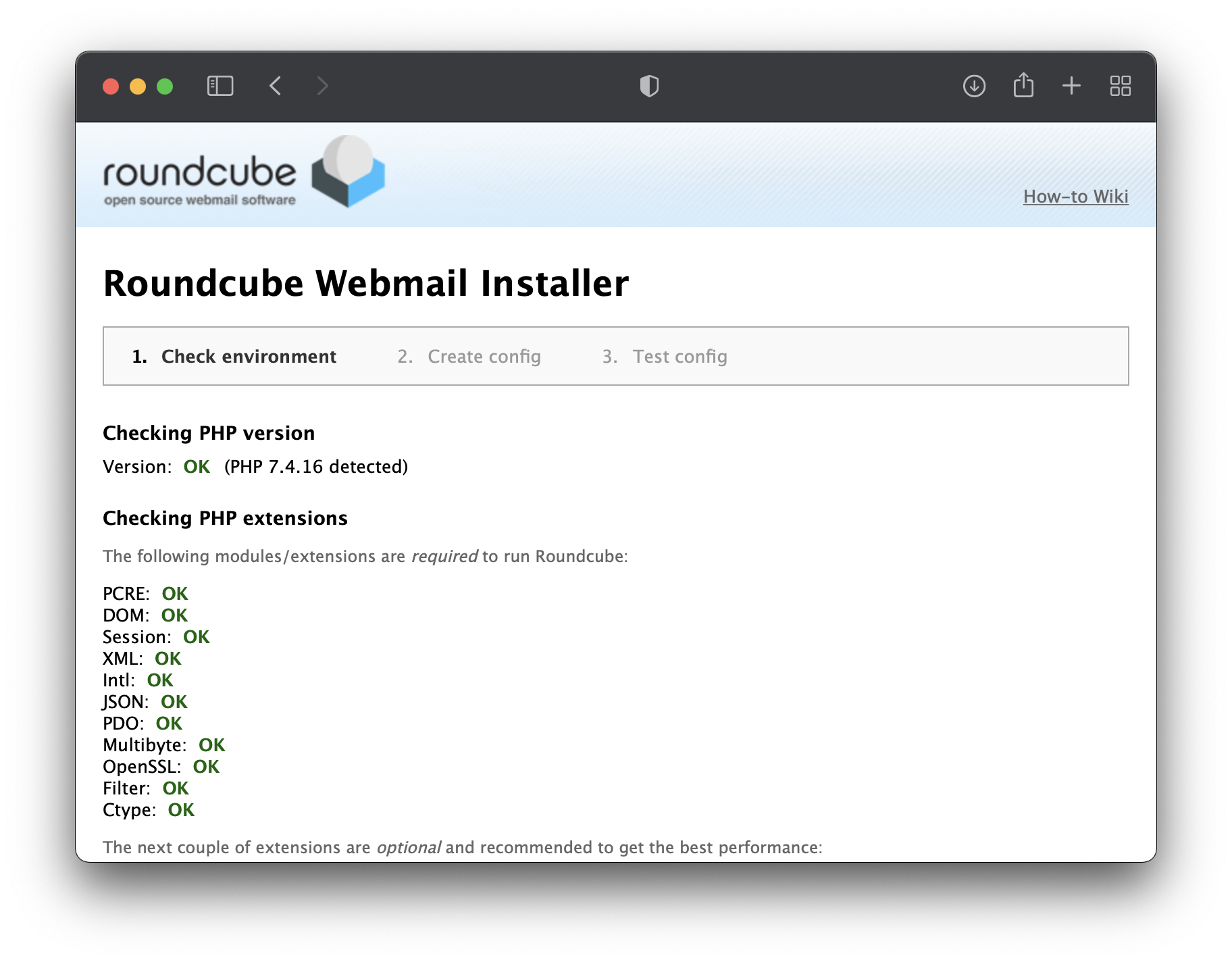
After a successful update, browse to http://localhost/installer/ and set up your Roundcube installation:
After installation, switch share and root to the public_html/ subdirectory to protect sensitive data, run the following command as root:
# curl -X PUT -d '"/path/to/app/public_html$uri"' --unix-socket \
      /path/to/control.unit.sock http://localhost/config/routes/1/action/share
# curl -X PUT -d '"/path/to/app/public_html/"' --unix-socket \
      /path/to/control.unit.sock http://localhost/config/applications/roundcube/root
Thus, Roundcube should be available on the listener’s IP address and port: