
WordPress§
To run the WordPress content management system using Unit:
Install Unit with a PHP 8.1+ language module.
WordPress core supports older PHP versions, but 8.1 is the lowest branch that still receives security fixes; current WordPress releases recommend 8.3 or later. The PHP version Unit’s module was built against is what your site runs on.
Install and configure WordPress’s prerequisites.
Install WordPress’s core files. Here, we install it at /path/to/app/; use a real path in your configuration.
Update the wp-config.php file with your database settings and other customizations.
Run the following command (as root) so Unit can access the application directory:
# chown -R unit:unit /path/to/app/
Note
The unit:unit user-group pair is available only with official packages, Docker images, and some third-party repos. Otherwise, account names may differ; run the ps aux | grep unitd command to be sure.
For further details, including permissions, see the security checklist.
Next, prepare the WordPress configuration for Unit (use real values for share and root):
Warning
The share action in the configuration below serves any file that no earlier step sends elsewhere. It serves a PHP file as source; it never runs it. The uri patterns are globs and match case-sensitively, so *.php does not match /config.PHP. On a case-insensitive filesystem (macOS, Windows, or a Docker Desktop bind mount from either) that file exists, and the share returns it with the passwords in it. A file the patterns never name, such as config.php.bak or settings.inc, is served the same way.
Add a types allow-list to the share action. Keep the fallback where the configuration has one:
"types": ["image/*", "text/css", "application/javascript", "font/*"]
Unit compares this list with the MIME type it looks up from the file’s extension. The lookup is case-insensitive, so /config.PHP still resolves to application/x-httpd-php and is refused. An extension Unit does not know, such as .phtml or .inc, has an empty type, and the allow-list refuses that too. A refused request takes the share’s fallback when there is one, and gets a 403 response when there is not. Do not write the list as a refuse-list such as [“!application/x-httpd-php”]: a negated pattern does not exclude an empty type. See MIME filtering for the pattern syntax and the MIME type table for the limits of types, including the index file case.
The list above is a starting point. Add the types your site serves -- text/html, application/json, text/plain, the XML types, application/pdf, video/* -- or those files are not served.
{
    "listeners": {
        "*:80": {
            "pass": "routes"
        }

    },

    "routes": [
        {
            "match": {
                "uri": [
                    "!*/.well-known/*",
                    "*/.*",
                    "/wp-config*.php",
                    "/readme.html",
                    "/license.txt",
                    "*.bak",
                    "*.orig",
                    "*.save",
                    "*.swo",
                    "*.swp",
                    "*.sql",
                    "*~"
                ]
            },

            "action": {
                "return": 404
            }
        },
        {
            "match": {
                "uri": [
                    "/wp-content/*.php",
                    "/wp-content/*.php/*",
                    "/wp-includes/*.php",
                    "/wp-includes/*.php/*"
                ]
            },

            "action": {
                "return": 404
            }
        },
        {
            "match": {
                "uri": [
                    "*.php",
                    "*.php/*",
                    "/wp-admin/"
                ]
            },

            "action": {
                "pass": "applications/wordpress/direct"
            }
        },
        {
            "action": {
                "share": "/path/to/app$uri",
                "types": [
                    "image/*",
                    "text/css",
                    "application/javascript",
                    "font/*"
                ],
                "fallback": {
                    "pass": "applications/wordpress/index"
                }
            }
        }
    ],

    "applications": {
        "wordpress": {
            "type": "php",
            "targets": {
                "direct": {
                    "root": "/path/to/app/"
                },

                "index": {
                    "root": "/path/to/app/",
                    "script": "index.php"
                }
            }
        }
    }
}
Warning
The order of the routes above matters. The steps that return 404 must stay before the share action. Reorder these steps, or add a “static files first” share ahead of them, and a request for /wp-config.php hands the client your database password -- unless the types option is there to refuse it. Keep both: the ordering and the types guard. A request the list refuses is not denied; it takes the fallback to index.php like any other unmatched URI. Do not read a 404 into it.
The wp-content step matters just as much. Without it, the *.php step below runs any PHP file under the document root, including anything written into wp-content/uploads/ by a plugin, a theme, or an attacker who reached the media library.
One gap no types rule closes: types is not applied when the share path resolves to a directory. Unit then takes the filename from the share’s own index option and serves it without testing its type, so a share carrying “index”: “index.php” — a common addition to a WordPress configuration — answers a request for a directory with the source of that index.php. Measured on 1.36.x: /sub/index.php is refused by the allow-list while /sub/ returns 200 with the file’s contents and a Content-Type: application/x-httpd-php header. The configuration above does not set index on the share and so is not affected; leave it unset, and let the route table decide what reaches PHP.
Note
The difference between the pass targets is their usage of the script setting:
- The direct target runs the .php script from the URI or defaults to index.php if the URI omits it.
- The index target specifies the script that Unit runs for any URIs the target receives.
Note
If your site does not use the XML-RPC interface (Jetpack, the mobile apps, and some remote publishing clients do), add /xmlrpc.php to the first deny list: it is a standing brute-force amplification target.
Restricting /wp-admin/* with a source match is worth doing whenever the admins come from known addresses — but exclude !/wp-admin/admin-ajax.php and !/wp-admin/admin-post.php from that match. Many themes and plugins call those two from logged-out visitors, and blocking them breaks the public front end.
Denying PHP under all of wp-content is stricter than WordPress’s own hardening guide, which only covers wp-content/uploads. It is the right default, but a few plugins still ship directly-addressed PHP endpoints; if one of yours does, allow it by name in the same list — a negated pattern such as !/wp-content/plugins/some-plugin/api.php takes precedence over the positive patterns around it.
Note
This recipe is for a single-site installation. Sub-directory multisite additionally needs the /<site>/wp-{admin,includes,content}/ and /<site>/files/ rewrites that .htaccess performs; sub-domain multisite works as written.
Upload the updated configuration. Assuming the JSON above was added to
config.json. Run the following command as root:# curl -X PUT --data-binary @config.json --unix-socket \ /path/to/control.unit.sock http://localhost/config/
Note
The control socket path may vary; run unitd -h or see Startup and Shutdown for details.
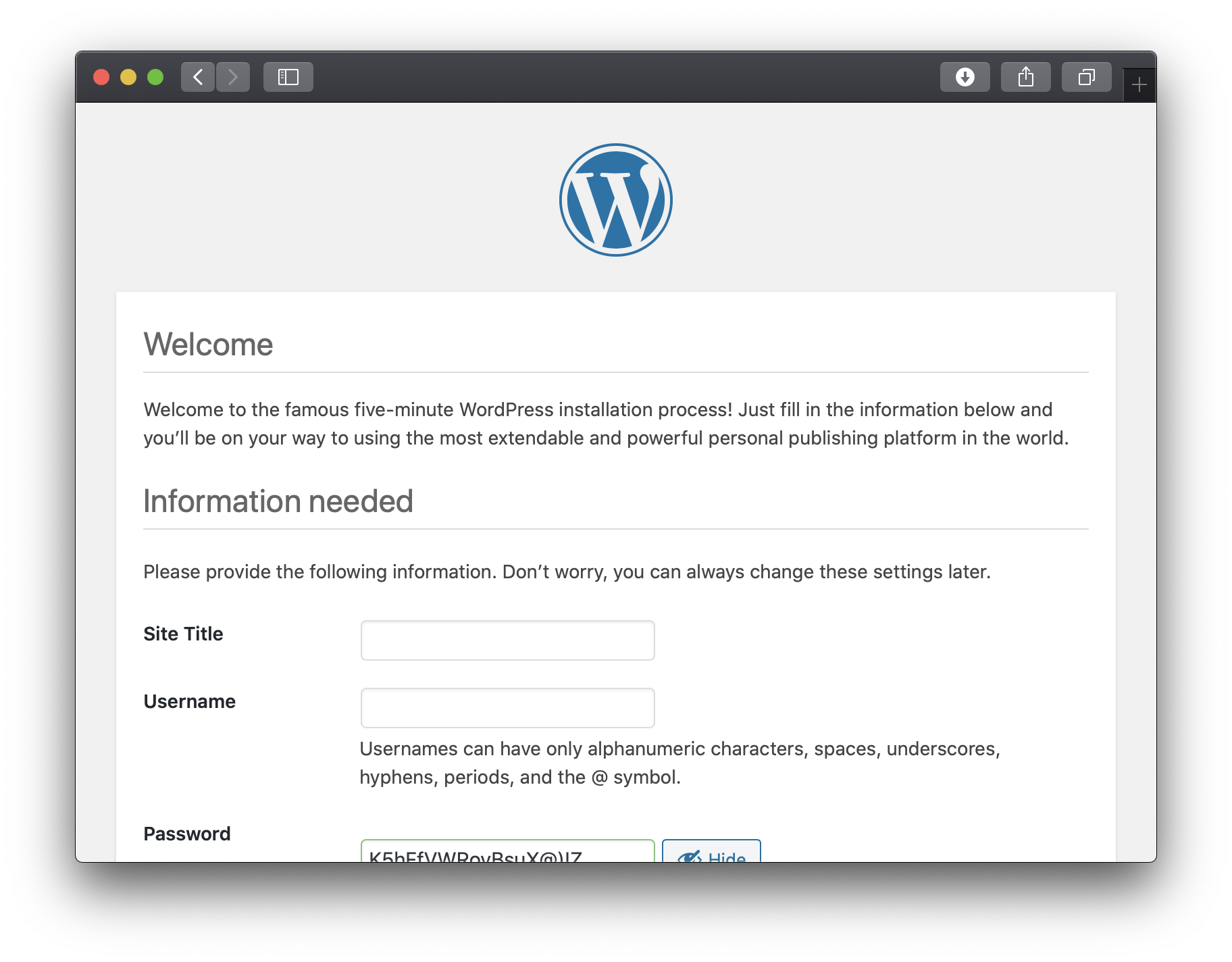
After a successful update, browse to http://localhost and set up your WordPress installation:
Note
The resulting URI scheme will affect your WordPress configuration; updates may require extra steps.
Production notes§
The configuration above covers the request path. A few settings outside it account for most of the surprises a live WordPress site runs into:
Media uploads fail with a 413. The global settings.http.max_body_size defaults to 8 MB and is independent of PHP’s own upload_max_filesize. Raise both:
{
    "settings": {
        "http": {
            "max_body_size": 104857600
        }
    },

    "applications": {
        "wordpress": {
            "options": {
                "admin": {
                    "memory_limit": "256M",
                    "upload_max_filesize": "100M",
                    "post_max_size": "100M"
                }
            }
        }
    }
}
PHP settings go in the options object described in the PHP reference; values must be strings.
Redirect loops behind a TLS-terminating proxy. WordPress builds its URLs from the scheme it sees, so a proxied site loops between http:// and https:// unless the listener is told whom to trust:
{
    "listeners": {
        "127.0.0.1:8080": {
            "pass": "routes",
            "forwarded": {
                "client_ip": "X-Forwarded-For",
                "protocol": "X-Forwarded-Proto",
                "source": ["192.0.2.1"]
            }
        }
    }
}
See the forwarded reference; the source option is required, and a wide one hands clients control of both headers.
Long imports, updates and migrations. Unit imposes no per-request time limit by default, so PHP’s max_execution_time is what governs. If you do set the application’s limits timeout, understand what it does: it measures silence between response messages, and when it fires the client gets a 503 while the PHP process keeps running to completion. Keep it above max_execution_time, or a long import returns an error to the browser and finishes anyway.
Slow downloads are a different knob: settings.http.send_timeout (30 seconds by default) is what drops clients pulling large media over a thin link.
Scheduled tasks. WordPress’s default WP-Cron only runs when a visitor arrives, which is unreliable on a low-traffic site and a per-request tax on a busy one. Unit has no built-in scheduler, so set DISABLE_WP_CRON in wp-config.php and drive it from outside — a systemd timer or a container sidecar running wp cron event run --due-now.
Serving TLS directly. If Unit is the edge, upload a bundle and reference it from the listener; see SSL/TLS and certificates.